Author: M Abo Bakar Aslam
Setting Environment for React Environment
Setting up a development environment for React using Visual Studio Code (VS Code) along with essential tools and extensions. Follow the steps below to get started.
1. Install Node.js and npm
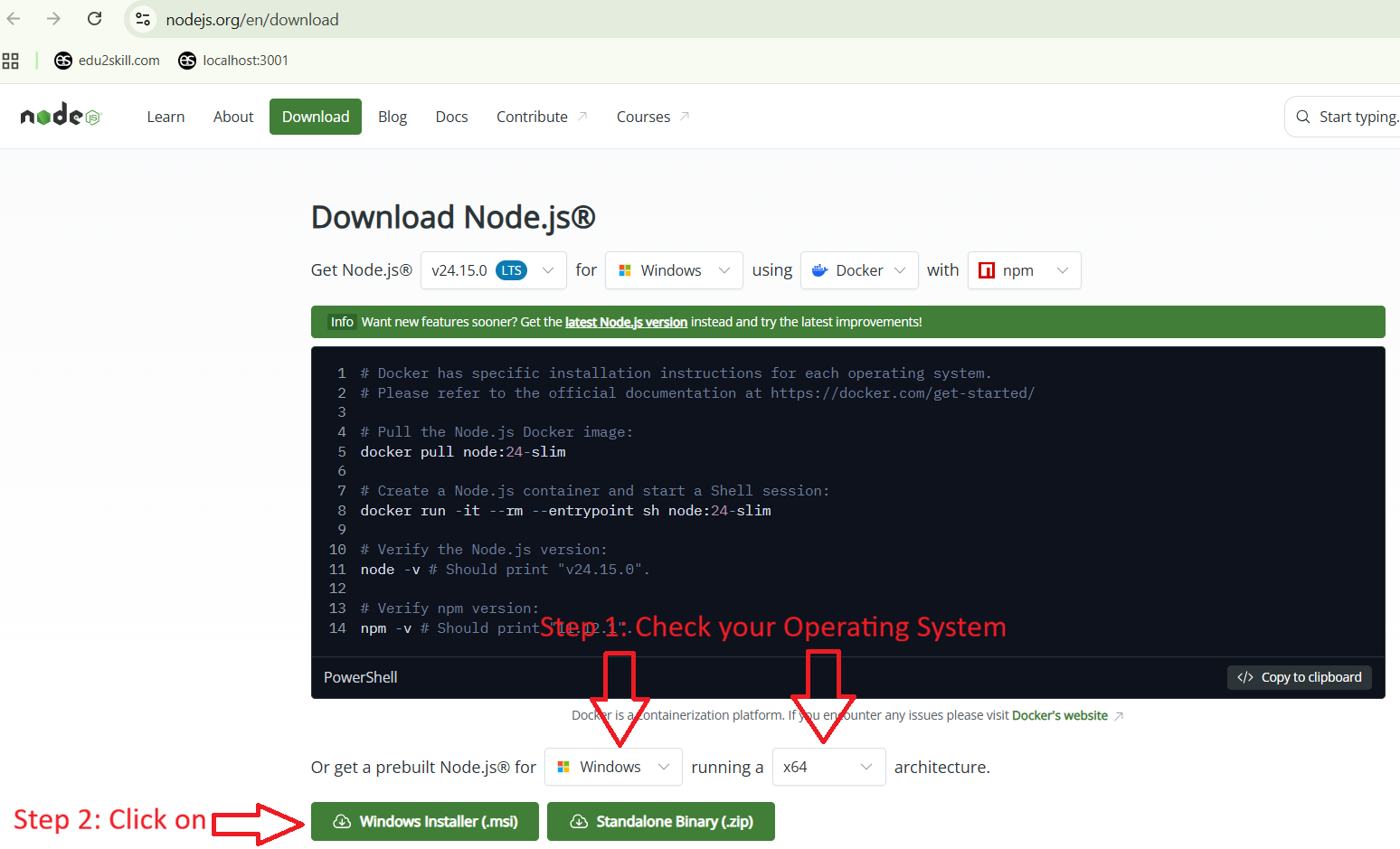
Download and install the latest version of Node.js by clicking on below button.
Note: Install Node.js in the C drive.
When you will click on the button, then you can follow steps shown in below figure
2. Install VS Code
Download and Install VS Code latest version by using below button for download. If you have already installed it, then skip this step.
3. Use Existing App - Already Created by Author
You can either create a new app or use an existing one.
4. Steps to Create a New App
4.1. Create a folder on your computer and open it in VS Code.
Important Guidelines:
- Do not use whitespace in folder names
- Do not use capital letters
- Do not start the folder name with a digit
- Avoid whitespace in the full folder path
4.2. Open the terminal in VS Code. Make sure that path of your current folder is shown.
4.3. Ensure your internet connection is active.
4.4. Run the following command:
npm create vite@latest4.4. When you run above command, then it will ask different parameters for your app
- Project Name: Do not use whitespace, capital letters, or start with a digit
- Framework: Use keyboard arrows-keys and set on React. And then hit Enter button
- Variant: TypeScript
- Install with npm and start now? Yes
4.5. When you run above command, then multiple files will be created in your created folder.
4.6. Run below command with your created-folder. By using this command, you will navigate to your React app's directory using the cd command.
cd yourappname4.7. If there is no folder named as node_modules in your project, then run below command. Otherwise you can skip this step
npm install4.8. Run your application by runnin below command. This command you will have to run everytime when you want running the application.
npm run dev5. Error 1 during Creating Application - NPM installation
If you face some error related to installation of npm in your system, then do below steps.
Note: Your PC user's name must not contain white space. If so, then change it by installing new window.
Step 5.1: Run below command in CMD window.
npm install npm -gStep 5.2: Add below path in your environment variable path.
c:\Users\AppData\Roaming\npm6. Error 2
Step 6.1: Search for powershell in Start Menu
Step 6.2: Run as Administrator the powersheel
Step 6.3: Write below commad in window of powersheel and hit Enter
Get-ExecutionPolicyStep 6.4: Write below commad and hit Enter
Set-ExecutionPolicy RemoteSigned -Scope CurrentUserStep 6.5: If ther is a prompt after execution above command, then press y and hit enter
Step 6.6: Close the powershell.