Author: M Abo Bakar Aslam
Change HTML Element using JavaScript DOM
Understand how to use JavaScript DOM manipulation to change HTML elements by selecting, modifying, and updating content, attributes, and CSS styles in real time. This technique allows developers to create dynamic, responsive, and interactive web pages, improve user experience, handle events efficiently, and build modern front-end applications with better performance and scalability.
1. getElementById Method
Example Code 1: Change element using onclick event.
Note following points in this example.
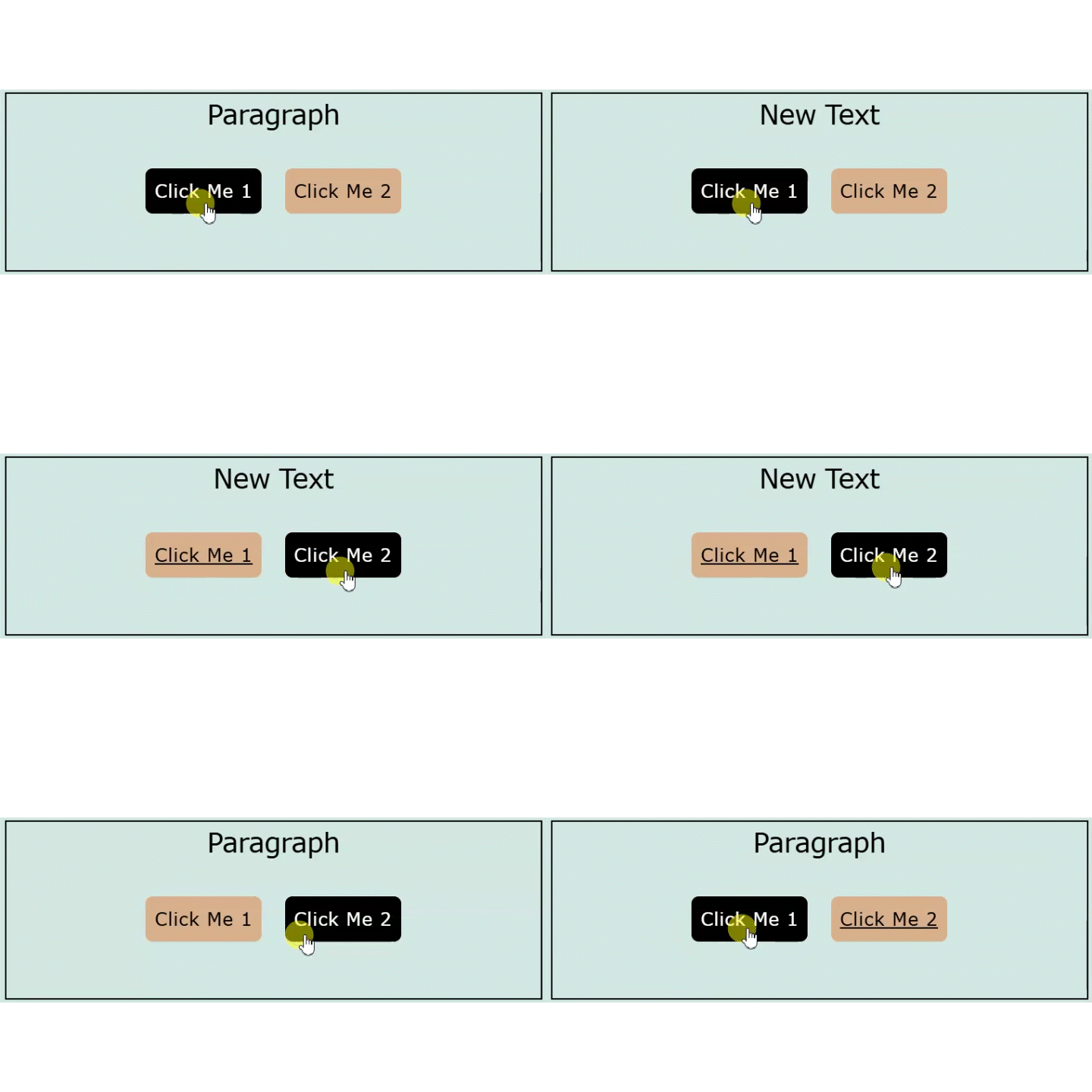
- Button Click Me 1 will convert text of paragraph from Paragraph to New Text
- Button Click Me 2 will convert text of paragraph from New Text to Paragraph
- getElementById() is JavaScript HTML method
- document.getElementById() is used to access a HTML element
- innerHTML is a property of the accessed-element. If will define the content of the element.
- onclick is attribute of an element. In this example, this attributed is added to the button.
<!--File: myHTMLFile.html-->
<p id="paraID">Paragraph</p>
<button onclick="document.getElementById('paraID').innerHTML = 'New Text'">Click Me 1</button>
<button onclick="document.getElementById('paraID').innerHTML = 'Paragraph'">Click Me 2</button>
Output
Example Code 2: Defining JavaScript in <script> tag in HTML file.
- This example is same as above but here we used
<script>tag in<header>tag.
<!--File: myHTMLFile.html-->
<header>
        <script>
        function setAsNewText(){
            document.getElementById('paraID').innerHTML = 'New Text';
        }
        function setAsParagraph(){
            document.getElementById('paraID').innerHTML = 'Paragraph';
        }
        </script>
</header>

<p id="paraID">Paragraph</p>
<button onclick="setAsNewText()">Click Me 1</button>
<button onclick="setAsParagraph()">Click Me 2</button>
Example Code 3: Defining JavaScript in external file.
- This example is same as above but here we used separate file i.e.,
myJavaFile.jsfor JavaScript.
<!--File: myHTMLFile.html-->
<header>
        <script src="myJavaFile.js"></script>
</header>

<p id="paraID">Paragraph</p>
<button onclick="setAsNewText()">Click Me 1</button>
<button onclick="setAsParagraph()">Click Me 2</button>//File: myJavaFile.js
function setAsNewText() {
document.getElementById('paraID').innerHTML = 'New Text';
}
function setAsParagraph() {
document.getElementById('paraID').innerHTML = 'Paragraph';
}2. getElementByClassName Method
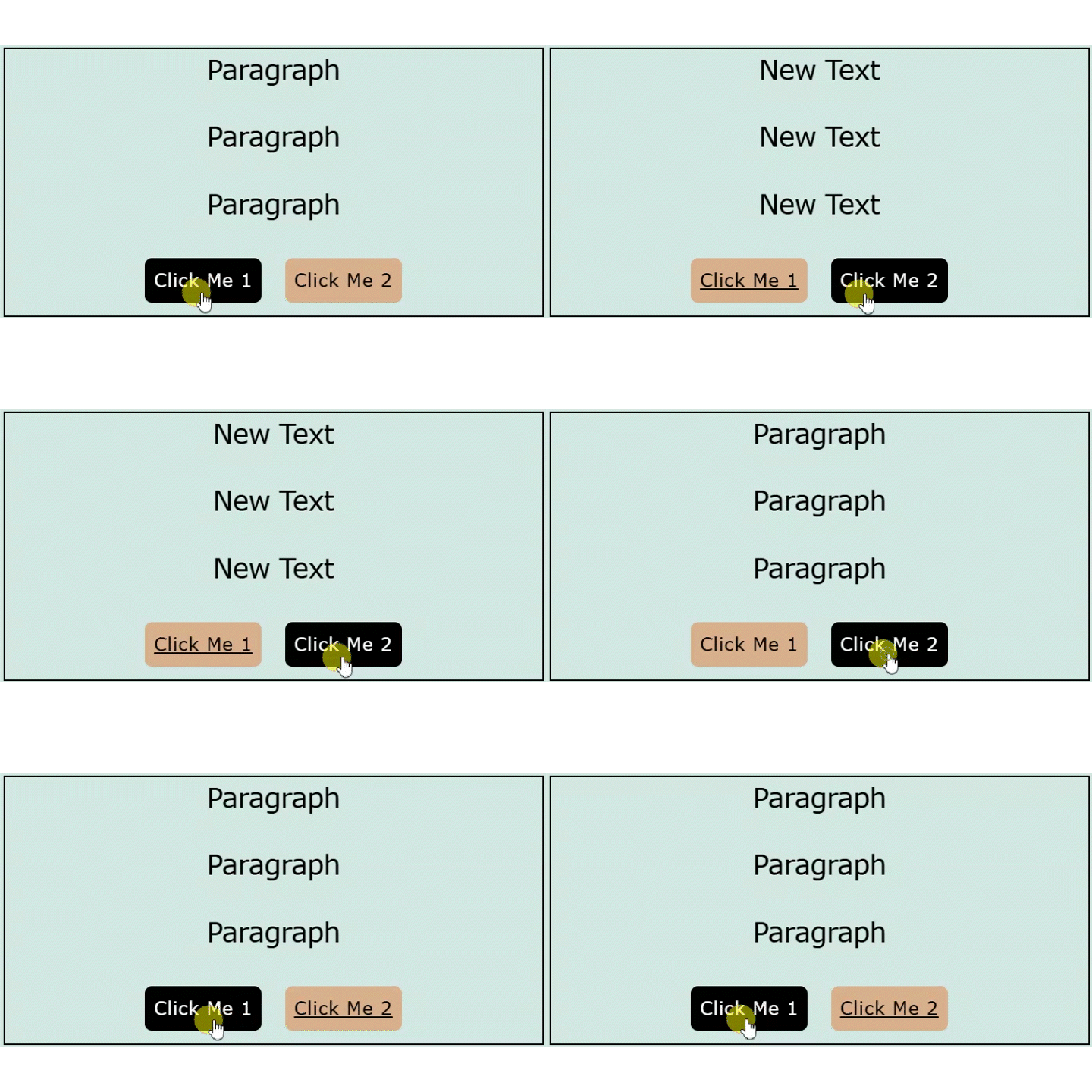
Example Code 4 (a): Change multiple elements using class attribute and getElementsByClassName method
<!--File: myHTMLFile.html-->
<header>
        <script src="myJavaFile.js"></script>
</header>

<p class="paraID">Paragraph</p>
<p class="paraID">Paragraph</p>
<p class="paraID">Paragraph</p>

<button onclick="setAsNewText()">Click Me 1</button>
<button onclick="setAsParagraph()">Click Me 2</button>// File: myJavaFile.js
function setAsNewText() {
let elements = document.getElementsByClassName("paraID");
for (let i = 0; i < elements.length; i++) {
elements[i].innerHTML = "New Text";
}
}
function setAsParagraph() {
let elements = document.getElementsByClassName('paraID');
for (let i = 0; i < elements.length; i++) {
elements[i].innerHTML = 'Paragraph';
}
}Output
3. getElementsByTagName Method
Example Code 4 (b): Change multiple elements using tag-name directly and getElementsByTagName method
<!--File: myHTMLFile.html-->
<header>
        <script src="myJavaFile.js"></script>
</header>

<p>Paragraph</p>
<p>Paragraph</p>
<p>Paragraph</p>

<button onclick="setAsNewText()">Click Me 1</button>
<button onclick="setAsParagraph()">Click Me 2</button>// File: myJavaFile.js
function setAsNewText() {
let elements = document.getElementsByTagName("p");
for (let i = 0; i < elements.length; i++) {
elements[i].innerHTML = "New Text";
}
}
function setAsParagraph() {
let elements = document.getElementsByTagName("p");
for (let i = 0; i < elements.length; i++) {
elements[i].innerHTML = "Paragraph";
}
}4. Changing Value of Attribute of HTML Element
Example Code 5: Change image by changing value of src attribute in <img> tag.
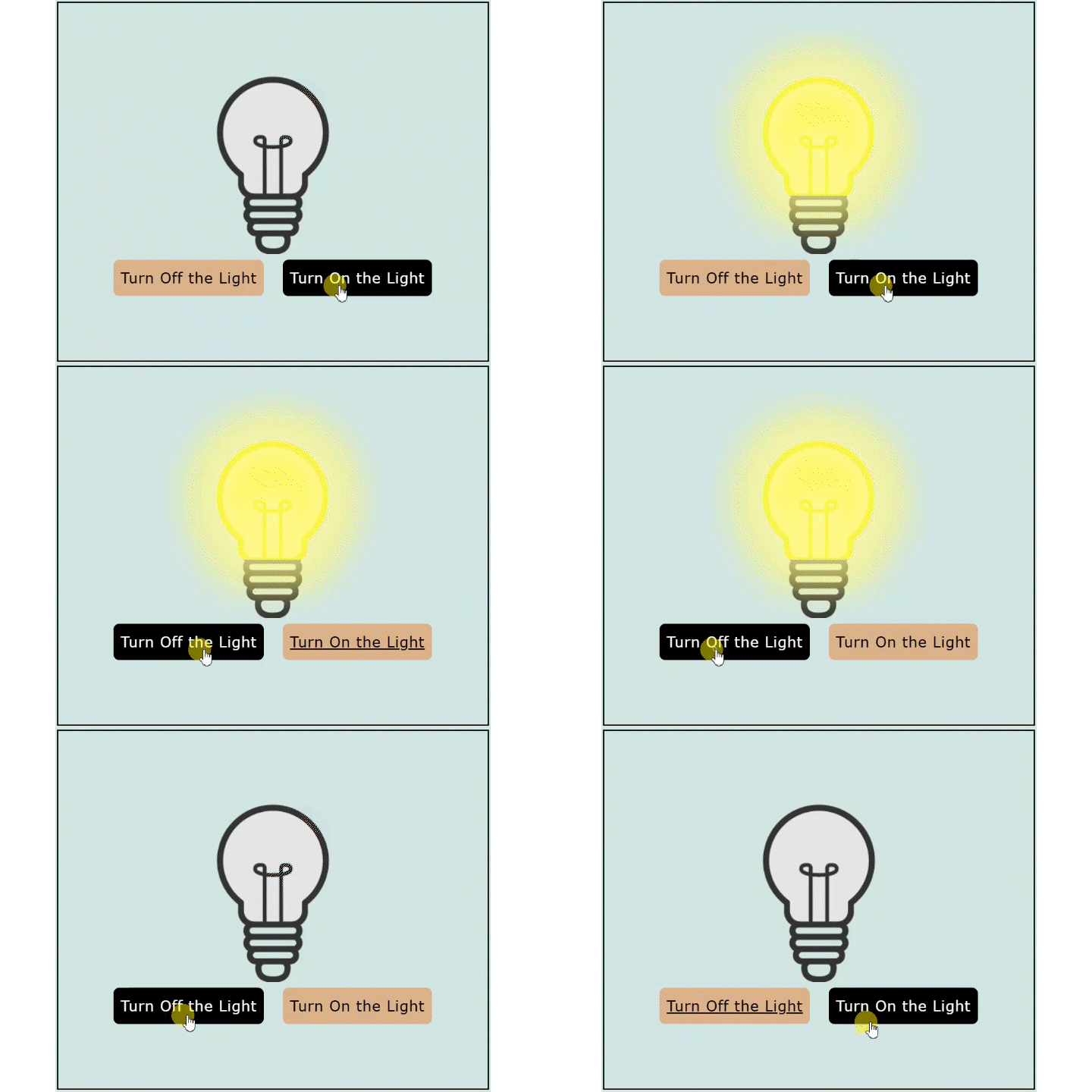
- There are two images i.e., pic_bulb_on.png and pic_bulb_off.png The image is changed when you click on the button.
- Note: Use inline style when there is only one line in the script.
<!--File: myHTMLFile.html-->

<img id="myImage" src="pic_bulb_off.png" />

<button onclick="document.getElementById('myImage').src='pic_bulb_on.png'">Turn On the Light</button>

<button onclick="document.getElementById('myImage').src='pic_bulb_off.png'">Turn Off the Light</button>
Output
5. Changing Style (CSS) of HTML Element
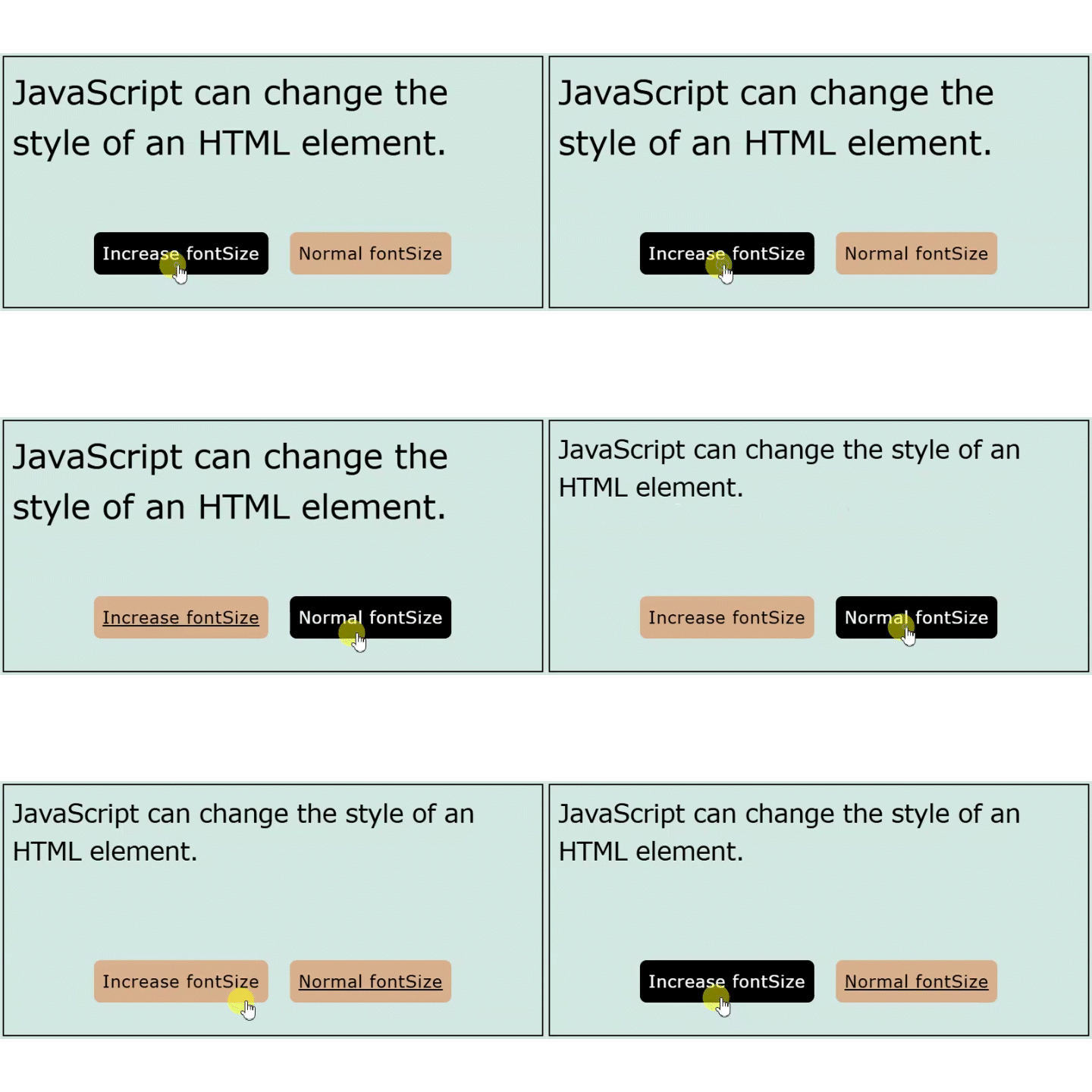
Example Code 6: Change value of font-size property of text-element (<p>)
Note: Name of the CSS property in JavaScript will be used as fontSize
<!--File: myHTMLFile.html-->

<p id="paragraphID">JavaScript can change the style of an HTML element.</p>

<button onclick="document.getElementById('paragraphID').style.fontSize='35px'">Increase fontSize</button>
<button onclick="document.getElementById('paragraphID').style.fontSize='16px'">Set Normal fontSize</button>
Output
6. Hiding HTML Element
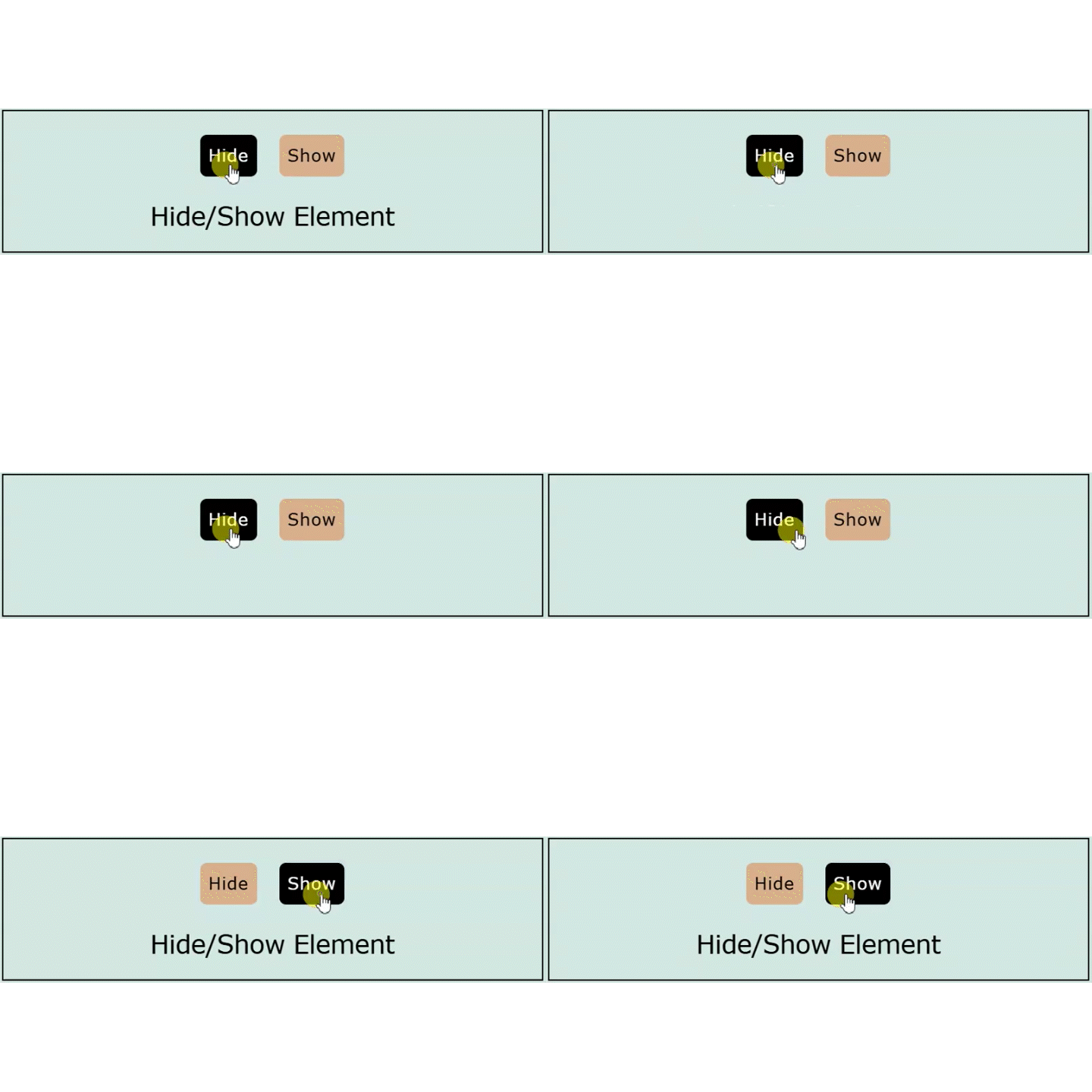
Example Code 7: Change value of display property between none and block for <p> tag
<!--File: myHTMLFile.html-->

<p id="paraHideShow">JavaScript can change the style of an HTML element.</p>

<button onclick="document.getElementById('paraHideShow').style.display='none'">Hide</button>
<button onclick="document.getElementById('paraHideShow').style.display='block'">Show</button>
Output
7. The onmouseover and onmouseout Events
Example Code 8: These are just like onclick event discussed above.
<!--File: myHTMLFile.html-->

<script src="myJavaFile.js"></script>

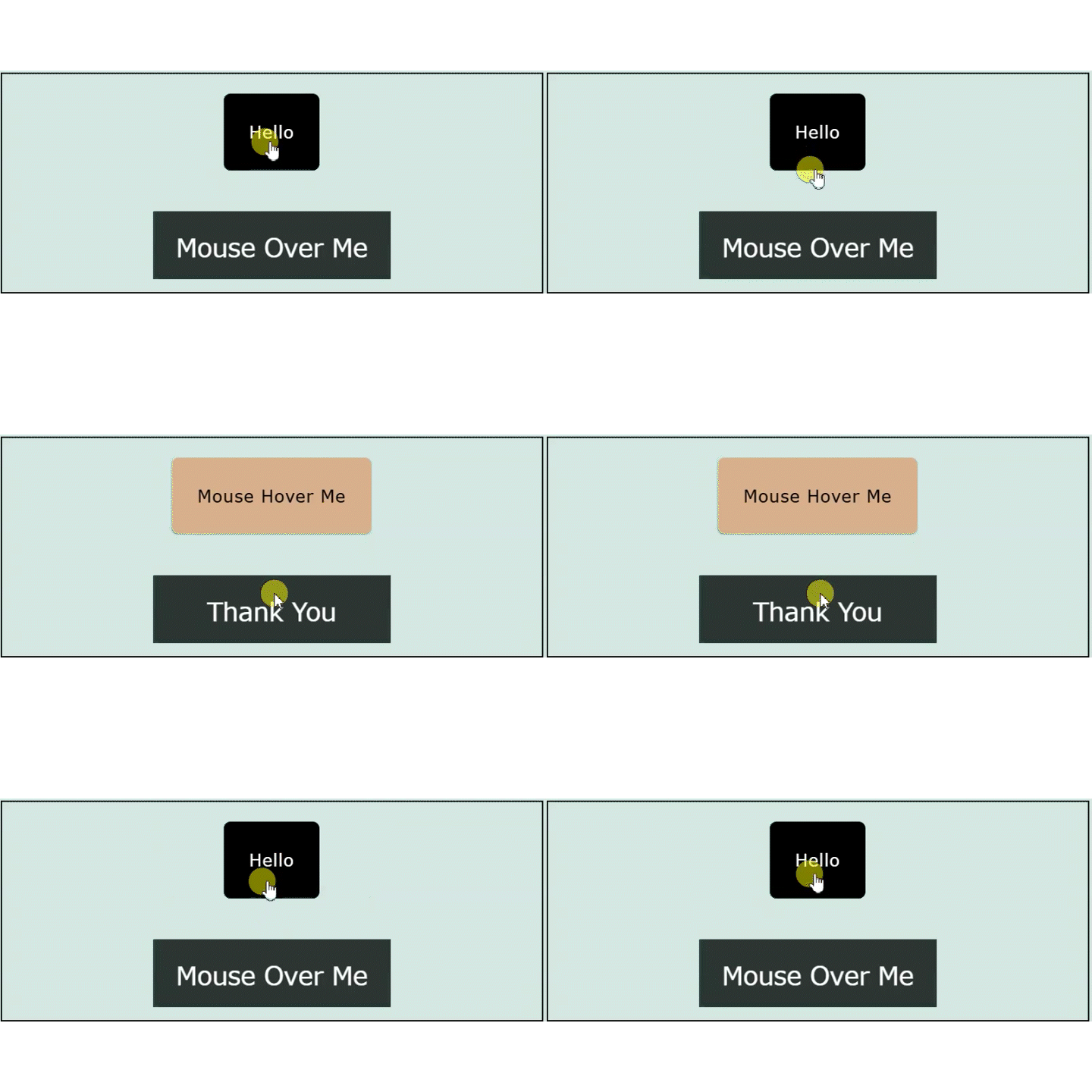
<button id="btnID" onmouseover="document.getElementById('btnID').innerHTML='Hello'" onmouseout="document.getElementById('btnID').innerHTML='Mouse Hover Me'">Mourse Over Me</button>

<div onmouseover="mOver(this)" onmouseout="mOut(this)">Mouse Over Me</div>// File: myJavaFile.js
function mOver(obj) {
obj.innerHTML = "Thank You"
}
function mOut(obj) {
obj.innerHTML = "Mouse Over Me"
}Output