Author: M Abo Bakar Aslam
Basic Structure
1. Styling Methods
There are three way to use CSS.
- Inline CSS
- Internal/Embeded CSS
- External CSS
2. Styling Using Inline CSS
Inline CSS, also known as “inline styles” is a way to apply CSS directly to individual HTML elements within an HTML document. Unlike external and internal/embedded stylesheets, which apply styles globally to multiple elements, inline CSS is specific to a single element. It’s defined within the HTML tag itself, using the style attribute.
Example Code 1: color property by using inline-css
<!--File: myFile.html-->
<p style="color: blue;">This is a paragraph with inline CSS.</p>
Output
This is a paragraph with inline CSS.
Example Code 2: background-color property by using inline-css
<!--File: myFile.html-->
<div style="background-color: #D8B08C;">This has a yellow background.</div>
Output
Example Code 3: font-size property by using inline-css
<!--File: myFile.html-->
<p style="font-size: 24px;">This is a larger paragraph.</p>
Output
This is a larger paragraph.
Example Code 4: font-family property by using inline-css
<!--File: myFile.html-->
<p style="font-family: Comic Sans MS;">This text uses the Arial font.</p>
Output
This text uses font as Comic Sans MS
Example Code 5: text-align property by using inline-css
<!--File: myFile.html-->
<div style="text-align: center; border: 1px solid red; width: 200px;">Centered text</div>
Output
Centered text
3. Styling Using Internal/Embedded CSS
This method applies styles globally to multiple elements. All styles are applied under <style> </style> tags.
Example Code 6: Style all HTML elements in internal/embedded CSS
Note following points in this example.
- All three paragraph have same color and backgroud-color
- Similarly, both headings have same font-size as 24px.
<!--File: myFile.html-->
<style>
p{
    color: red;
    background-color: black;
}
h1{
    font-size: 24px;
}
</style>

<h1>Name</h1>
<p>Introductory paragraph</p>
<p>Contact Information</p>

<h1>Education History</h1>
<p>Detail about educational journey</p>
Output
Name
Introductory paragraph
Contact Information
Education History
Detail about educational journey
Example Code 7: Styling using IDs in internal/embedded CSS.
Note following points in this example.
- Hash (#) is used to define ID.
- Only first heading has font-size as 24px.
- Last paragraph as font-size as 24px.
- Only second paragraph has red color and black background-color.
IDs are used to apply styles, but this method is not suggested. It is rarely used.
<!--File: myFile.html-->
<style>
#pID{
    color: red;
    background-color: black;
}
#myID{
    font-size: 24px;
}
</style>

<h1 id="myID">Name</h1>
<p id="pID">Introductory paragraph</p>
<p>Contact Information</p>

<h1>Education History</h1>
<p id="myID">Detail about educational journey</p>
Output
Name
Introductory paragraph
Contact Information
Education History
Detail about educational journey
Example Code 8: Styling using classes in internal/embedded CSS.
Note following points in this example.
- Dot (.) is used to define class-name.
- class keyword is used in HTML elements instead of id.
- Only first heading has font-size as 24px.
- Last paragraph as font-size as 24px.
- Only second paragraph has red color and black background-color.
Classes are used to apply styles. This method is highly suggested and mostly used.
<!--File: myFile.html-->
<style>
.pID{
    color: red;
    background-color: black;
}
.myID{
    font-size: 24px;
}
</style>

<h1 class="myID">Name</h1>
<p class="pID">Introductory paragraph</p>
<p>Contact Information</p>

<h1>Education History</h1>
<p class="myID">Detail about educational journey</p>
3. Styling Using External CSS
This method applies styles globally to multiple elements. All styles are applied in separate file having extension as .css
Example Code 9: There are two files. One is myFile.html and other is myStyle.css. Both files are place in same directory. Code for both files are shown below.
Note following points in this example.
- The
<link>tag is used to link myStyle.css file to current HTML file. It is writteni in header tag because this file is in our computer/server. If this file is in other’s computer/server, then it is suggested to write this link at bottom of HTML file. - The
<link>tag is closed properly. - Output will be same as for previous example.
<!--File: myFile.html-->
<header>
    <link rel="stylesheet" href="myStyle.css" />
</header>
<h1 class="myID">Name</h1>
<p class="pID">Introductory paragraph</p>
<p>Contact Information</p>

<h1>Education History</h1>
<p class="myID">Detail about educational journey</p> /* File: myStyle.css */
.pID{
color: red;
background-color: black;
}
.myID{
font-size: 24px;
}Example Code 10: Repeat previous example but use IDs instead of classes in both files.
Note following points in this example.
- we just replace dot(.) by hash(#) and class by id.
<!--File: myFile.html-->

<header>
    <link rel="stylesheet" href="myStyle.css" />
</header>

<h1 id="myID">Name</h1>
<p id="pID">Introductory paragraph</p>
<p>Contact Information</p>

<h1>Education History</h1>
<p id="myID">Detail about educational journey</p>/* File: myStyle.css */
#pID{
color: red;
background-color: black;
}
#myID{
font-size: 24px;
}Preferences
Inline-CSS > Internal-CSS > External-CSS
If you style HTML element in multiple ways, then a method can override the other method’s property.
- Inline-CSS can override both internal and external CSS
- Internal-CSS can only overrise external CSS
Example Code 13: Multiple styles to multiple HTML elements are applied here.
Question 1: Why background-color for last paragraph is black, although p is styled as blue background-color?
Question 2: Why text-color for last paragraph is white, although there is no property in mStyle class?
<!--File: myFile.html-->
<style>
p{
    color: white;
    background-color: blue;
}
h1{
    color: red;
}
.mStyle{
    background-color: black;
}
</style>

<p>Web Development Using HTML and CSS.</p>
<h1>University of Gujrat.</h1>
<p class="mStyle">Computer Science</p>
Output
Web Development Using HTML and CSS.
University of Gujrat.
Computer Science
Example Code 14: Overriding internal CSS by inline-CSS
Question 1: Why background-color for last paragraph is red, although p is styled as blue background-color in internal CSS?
Question 2: Why text-color for heading is white, although there is no property in mStyle class?
<!--File: myFile.html-->
<style>
p{
    color: white;
    background-color: blue;
}
h1{
    color: red;
}
.mStyle{
    background-color: black;
}
</style>

<p>Web Development Using HTML and CSS.</p>
<h1 class="mStyle" style="color: white;">University of Gujrat.</h1>
<p style="background-color: red;">Computer Science</p>
Output
Web Development Using HTML and CSS.
University of Gujrat.
Computer Science
Example Code 15: Overriding external CSS by internal-CSS
Question 1: Why background-color for first paragraph is black, although p is styled as blue background-color in external CSS?
Question 2: Why text-color for heading is orange, although there is no property in mStyle class?
<!--File: myFile.html-->

<header>
    <link rel="stylesheet" href="myStyle.css" />
    <style>
        p{
            color: yellow;
            background-color: black;
        }
        h1{
            color: orange;
        }
        .mStyle{
            background-color: black;
        }
    </style>
</header>

<h1 class="myStyle">Name</h1>
<p>Introductory paragraph</p>
<p>Contact Information</p>

<h1 class="myStyle">Education History</h1>
<p>Detail about educational journey</p>/* File: myStyle.css */
p{
color: red;
background-color: blue;
}
.myStyle{
font-size: 24px;
}Output
Name
Introductory paragraph
Contact Information
Education History
Detail about educational journey
Example Code 16: Overriding both internal and external CSS by inline CSS
Question 1: Why background-color for first paragraph is green, although p is styled as blue background-color in external CSS and yellow in internal CSS?
Question 2: Why text-color for last heading is purple, although there is no property in mStyle class?
<!--File: myFile.html-->

<header>
    <link rel="stylesheet" href="myStyle.css" />
    <style>
        p{
            color: black;
            background-color: yellow;
        }
        h1{
            color: orange;
        }
        .mStyle{
            background-color: black;
        }
    </style>
</header>

<h1 class="myStyle">Name</h1>
<p style="background-color: green;">Introductory paragraph</p>
<p>Contact Information</p>

<h1 class="myStyle" style="color: purple; ">Education History</h1>
<p>Detail about educational journey</p>/* File: myStyle.css */
p{
color: red;
background-color: blue;
}
.myStyle{
font-size: 24px;
}Output
Name
Introductory paragraph
Contact Information
Education History
Detail about educational journey
:hover pseudo-class
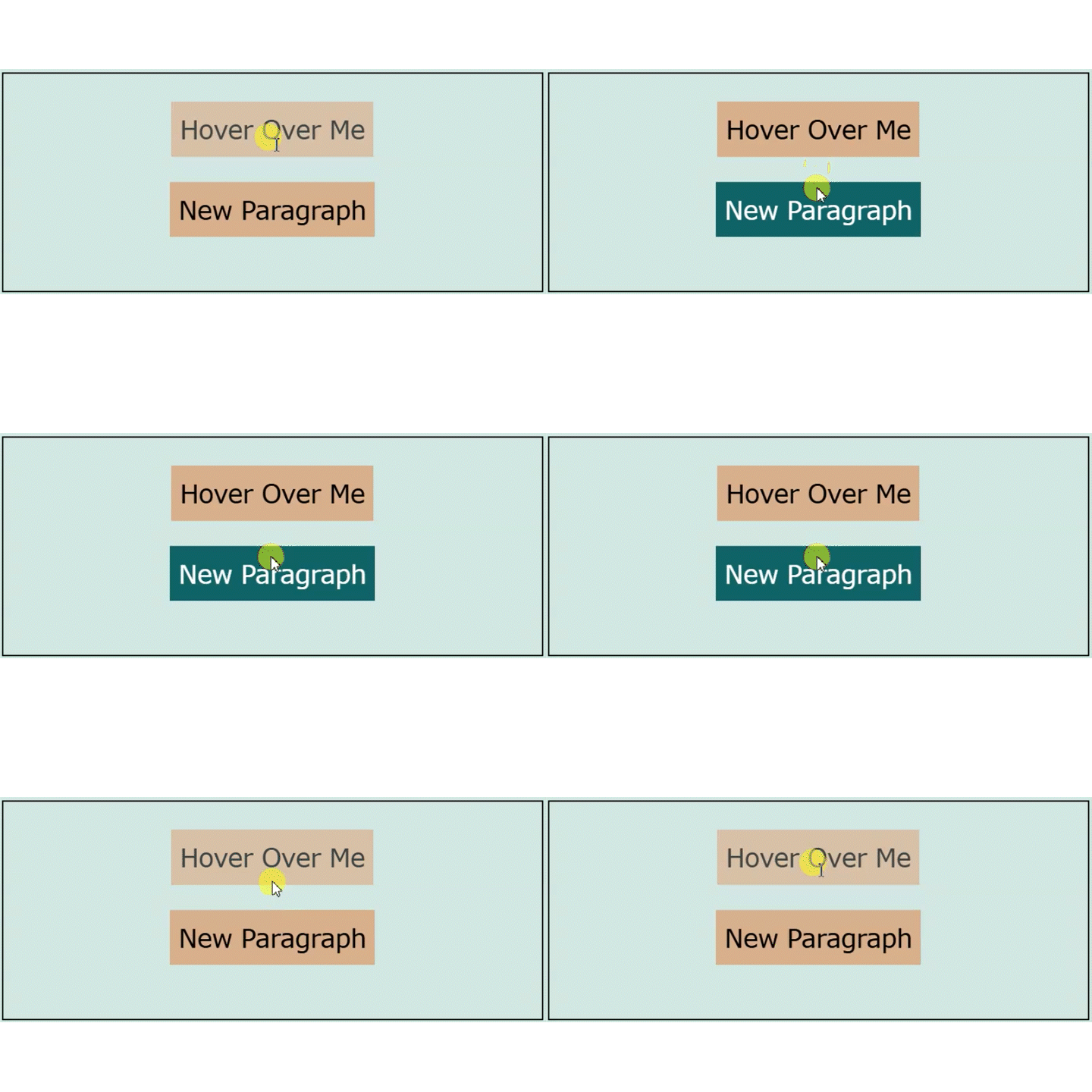
In web development, hover refers to a user interaction where the pointer (usually a mouse cursor) is placed over an element without clicking it. The :hover pseudo-class in CSS allows developers to apply specific styles to an element when it’s hovered over.
Note: It cannot be applied using inline-CSS.
Example Cdoe 17:
<!--File: myFile.html-->
<style>
    p{
        background-color: #D8B08C;
    }
    p:hover{
        opacity: 70%;
    }
    .myParagraph:hover{
        opacity: 100%;
        background-color: #0F6466;
        color: white;
    }
</style>

<p>Hover Over Me</p>
<p class="myParagraph">New Paragraph</p>
Output
Important CSS Properties
| Sr.No. | Property Name | Possible Values | Description |
|---|---|---|---|
| 1 | color | black #fff | using color name using color code |
| 2 | background-color | red #ccc | using color name using color code |
| 3 | font-size | 24px | pixel value |
| 4 | font-family | Verdana, sans-serif | Any font-family |
| 5 | text-align | center right left | Align as center Align as right Align as left |
| 6 | border | 1px solid black 2px dashed red 3px dotted blue | 1px solid black border 2px dashed red border 3px dotted blue border |
| 7 | border-radius | 40% 10% 15px | Percentage value Percentage value Pixel value |
| 8 | margin | 2px 3px 4px 5px 6px 10px 15px | All sides Top-bottom / left-right Top right bottom left |
| 9 | margin-top | 24px | Top spacing |
| 10 | margin-bottom | 24px | Bottom spacing |
| 11 | margin-left | 24px | Left spacing |
| 12 | margin-right | 24px | Right spacing |
| 13 | padding-top | 24px | Top inner spacing |
| 14 | padding-bottom | 24px | Bottom inner spacing |
| 15 | padding-left | 24px | Left inner spacing |
| 16 | padding-right | 24px | Right inner spacing |
| 17 | padding | 2px 3px 4px 5px 6px 10px 15px | All sides Top-bottom / left-right Top right bottom left |
| 18 | text-decoration | underline none | Apply underline Remove underline |
| 19 | line-height | 1.5 | Line spacing |
| 20 | display | none block inline-block flex | Hide element Block element Inline-block element Flex layout |
| 21 | width | 200px 40% 100% | Fixed width Relative width Full width |
| 22 | height | 200px 40% 100% | Fixed height Relative height Full height |
| 23 | min-width | 300px | Minimum width |
| 24 | max-width | 700px | Maximum width |
| 25 | min-height | 300px | Minimum height |
| 26 | max-height | 700px | Maximum height |
| 27 | order | 1 2 3 | Position 1 Position 2 Position 3 |
| 28 | Not recommended. Use flexbox. | ||
| 29 | position | absolute fixed sticky | Avoid excessive use. Used for positioning. |
| 30 | flex-direction | column row row-reverse | Direction of flex items |
| 31 | flex-wrap | nowrap wrap | Wrapping behavior |
| 32 | justify-content | center flex-start flex-end space-between space-around | Horizontal alignment |
| 33 | align-items | center flex-start flex-end | Vertical alignment |
| 34 | :hover | Change property | Pseudo-class |